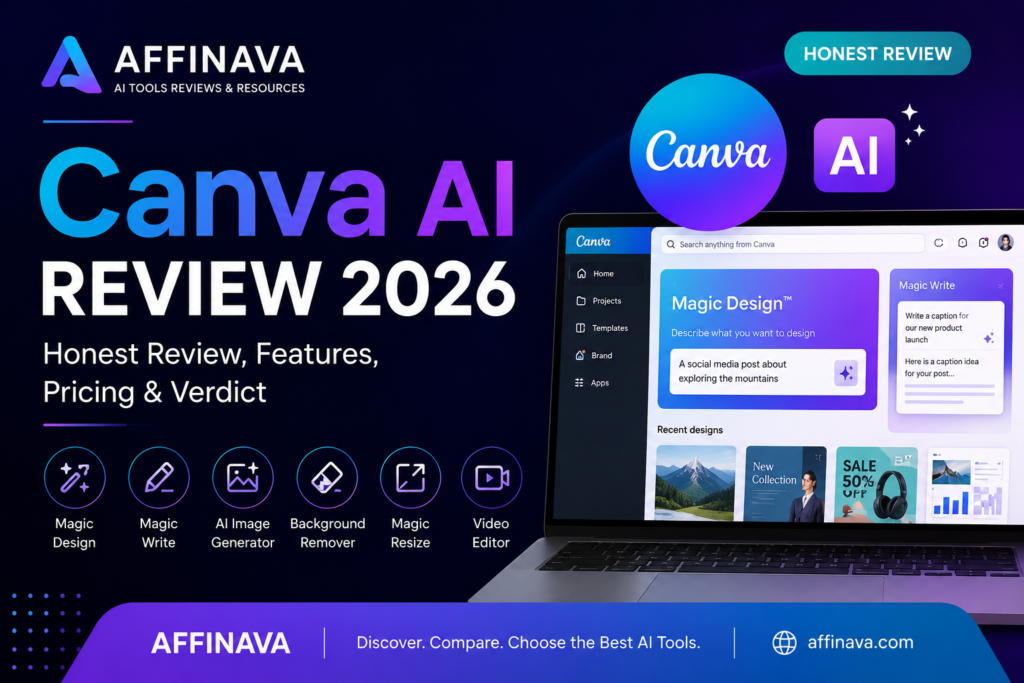
Introduction of Canva AI Review?
Canva AI, powered by Magic Studio, helps users create presentations, social media graphics, documents, and images faster with AI. It combines design and AI tools in one easy-to-use platform, making it popular among students, marketers, freelancers, and businesses. However, it can edit them within a familiar interface. Canva was officially launched in January 2013 in Sydney, Australia. The company was co-founded by a team of three entrepreneurs. They are Melanie Perkins, Cliff Obrecht, and Cameron Adam.
What is Canva AI?
Here’s a Canva AI review based on my real-world experience using it in real design and content workflows. Canva AI is great for speed, accessibility, and ease of use. It’s super helpful for rapid visuals, social posts, presentations, and everyday design. I share what Canva AI is and isn’t, first impressions as well as core features such as Magic Design, Magic Media, Magic Expand, Background Remover, and Canva Code. The review also covers real limitations, free versus Pro pricing, and how Canva AI compares with best-in-class specialist tools. The final verdict includes who Canva AI is perfect for, who will outgrow it eventually, and when pro tools are the better choice.
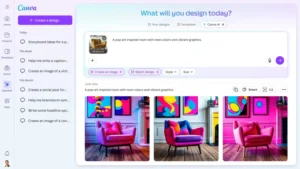
This is a Canva AI review. For more updates, please visit Canva AI
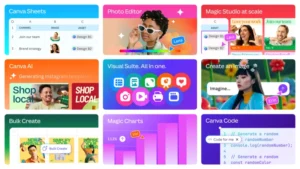
Key Features of Canva AI
The most popular features of Canva are given below.
- Magic Design: You can generate fully customized templates and multi-slide presentations from a simple text or voice prompt. With the help of Canva AI 2.0, you can chat with the assistant to adjust layouts, change fonts, and refine designs in real time.
- Magic Write: An AI copywriter built directly into your workflow. It excels at short-form marketing text like social media captions, headlines, ad copy, and content brainstorming.
- AI Image Generator: It can convert text prompts into images, custom graphics, or clean vectors. And features like character reference let you maintain facial consistency across generations.
- Background Remover: Remove the background from your images, documents, and other sheets easily by using Canva AI.
- Magic Resize: By using Canva AI, the users can resize images, documents, presentations, and designs just like magic.
- Brand Kit: Brand kits are Canva’s way of helping teams stay visually consistent in presentations. You can upload logos, define color palettes, set fonts, and create reusable templates. Once that’s in place, applying brand elements to new designs becomes much easier.
- Video Editor: The Canva Video Editor uses a wide multi-track timeline. It is designed for social media creators, businesses, and internal communications.
- Canva Sheets: Canva Sheets is a visual spreadsheet tool that directly integrates data with the Canva design workspace.
Canva Pricing Plans Comparison in 2026
| Plan | Monthly Cost (USD) | Annual Cost (USD) | Users |
Best For |
| Canva Free |
$0 |
$0 | 1 | Casual users, testing Canva |
| Canva Pro |
$12.99 |
$119.99 |
1 |
Creators, freelancers, solo marketers |
| Canva for Teams |
$14.99 |
$149.90 |
Up to 5 |
Small teams, agencies |
| Canva Enterprise |
Custom |
Custom | Custom |
Large organization |
Stick with Canva Free if:
- You design occasionally
- You’re experimenting with Canva AI
- You don’t care about watermarks or brand consistency
- You’re okay with limited AI access and storage
For basic needs, the free plan is surprisingly generous.
Upgrade to Canva Pro if:
- You create content regularly
- You rely on AI features like Magic Design, Magic Expand, or Background Remover
- You want clean exports without watermarks
- You care about brand consistency
- You don’t want to think about storage limits
For one creator, Canva Pro is the real “power.” This is where Canva starts to feel fast rather than restrictive.
Pros
- Canva makes design extremely accessible.
- The template library is one of its biggest strengths.
- The editor is intuitive and fast.
- AI features help reduce initial friction.
- It supports a wide range of content formats in one place.
- Collaboration works well for most teams.
Cons
- Customization has limits.
- Templates can start to feel repetitive.
- AI outputs are not final-ready.
- Brand consistency depends on users.
- Complex content takes more effort.
- For presentations specifically, Canva focuses on design rather than structure.
My Experience of Canva AI review
While exploring Canva AI, I found it incredibly easy to create presentations and social media graphics in just a few minutes. The AI tools saved time, especially when generating design ideas and editing images. Although advanced designers may still prefer professional software for complex projects, Canva AI offers an excellent balance of simplicity and productivity for everyday users. You can use Canva AI primarily for presentations, social media, or custom image generation.
Direct Comparison: Canva AI vs Gamma AI
| Feature |
Gamma AI |
Canva AI (Magic Studio) |
| Primary Strength |
Speed, text-to-deck accuracy, and layout automation. |
Unmatched graphic assets and design flexibility. |
| Generation Speed |
Under 1 minute for a complete, smart slide deck. |
Fast layout generation, but requires manual text tuning. |
| Content Quality | Deep, logical narrative structures that read professionally. | Clean visual placement, but text often reads like generic filler. |
| Editing Style |
Strict, theme-governed blocks; less pixel pushing. |
Total creative freedom; modify every pixel, element, and layer. |
| Format Style | Web-native, responsive “cards” that scroll like a webpage. | Standard, traditional presentation slides (16:9 or 4:3 ratios). |
| Asset Library |
Modest; relies heavily on AI-generated images. |
Massive; over 100 million stock photos, graphics, and icons. |
| Unique Feature | Built-in viewer analytics for tracking user engagement. | Comprehensive brand kits to lock in assets and guidelines. |
Who Should Use Canva AI?
For non-designers, small business owners, and marketing teams, Canva AI is best for those who need to produce high-quality visual content quickly without a steep learning curve. It acts as an automated assistant that bridges the gap between having an idea and executing a design.
- Small Business Owners & Solopreneurs
- Quick Branding
- All-in-One Content
- Low Budget
- Social Media Managers & Marketers
- Bulk Production
- Fast Copywriting
- Asset Refreshing
- Non-Design Corporate Professionals
- Express Presentations
- Easy Data Visualization
- Document Enhancements
FAQ of Canva AI Review
1. Is Canva AI free to use?
Yes, Canva AI is available on the free plan but has limitations. Most AI features are restricted, exports may include watermarks, and usage caps apply.
2. Is Canva AI worth paying for?
Canva AI is worth paying for based on real usage if Canva is part of your regular workflow. The Canva Pro plan removes most limitations by unlocking AI features, premium assets, clean exports, and brand tools.
3. Is Canva AI good for beginners?
Yes. Canva AI is one of the most beginner-friendly AI design tools. The interface is live, the AI suggestions are easy to edit, and there’s no steep learning curve. While still learning design fundamentals at their own pace, beginners can create usable designs quickly.
4. How do I use Canva AI?
Once you log in to Canva, AI features are available directly in the editor. You can access them through options like “Canva AI” and “Magic Design,” depending on the feature. Some tools work by providing a prompt and refining the result inside the editor.
5. What is Magic Design in Canva AI?
Canva AI has a prompt-based template generator called Magic Design. Just tell it what you want to create, like a presentation, social post, or banner, and Canva generates multiple editable design options. It’s especially designed for presentations and social media banners when you want structure without starting from scratch.
6. How good is the Canva AI image generator?
Canva’s AI image generator is good, especially for quick visuals, concepts, and background images. It’s not only the most advanced image generation model on the market but also fast, accessible, and integrated directly into design workflows.
Final Verdict of Canva AI Review
After using Canva AI in real experiences and spending more time across its AI features, my takeaway is clear. Canva AI is built for usability, not precision. It shines when you want speed, convenience, and everything in one place. But the moment you start pushing for pixel-perfect layouts, deep customization, or specialized workflows, you hit a ceiling.
There are better background removers.
Better image generators.
Better illustration tools.
Better video AI models.
Ready to Try Canva AI?
If Canva AI fits your workflow, visit the official Canva website to explore its latest AI features and pricing plans.
Overall Rating
⭐⭐⭐⭐⭐ 4.9/5
Ease of Use: 5/5
AI Features: 4.8/5
Design Flexibility: 5/5
Pricing: 4.7/5
Overall Value: 4.9/5
Recommended For:
✔ Students
✔ Teachers
✔ Freelancers
✔ Content Creators
✔ Small Businesses
In conclusion, after about 30 days of research on Canva AI, I write the Canva AI review. Canva is a world-famous AI tool for professionals or non-professionals. It’s very helpful for them. Remember that this is a Canva AI review. So, if you buy any plan, please visit the Canva website because they have discounts sometimes.
Enjoy the Canva AI Review in 2026.
If you need more updates of AI tools, software, and WP themes. Please visit AI Tools, Software Deals and WP Themes